5.3.1 Train as Good/Spam
Training From Within SpamSieve
The Train as Good and Train as Spam commands in SpamSieve’s Message menu are not the primary way of training SpamSieve. These commands are only intended for correcting mistakes for messages that are already in SpamSieve.
For example, messages that SpamSieve has filtered will appear in the Log window, and messages that you’ve trained (or that SpamSieve has auto-trained) will appear in the Corpus window. You can use the training commands in SpamSieve’s Message menu with messages in these windows to tell SpamSieve that the messages were incorrectly predicted (i.e. that SpamSieve thought a message was good but it’s actually spam) or incorrectly trained (i.e. some time ago you accidentally trained a message as good when you meant to train it as spam). The messages may no longer be in your mail client or it may simply be easier to find and correct them in SpamSieve.
If you try to use the Message menu training commands without having a message selected in SpamSieve’s Log or Corpus window, you probably meant to train the message from your mail client instead, so SpamSieve will open this help page.
Training From Your Mail Client
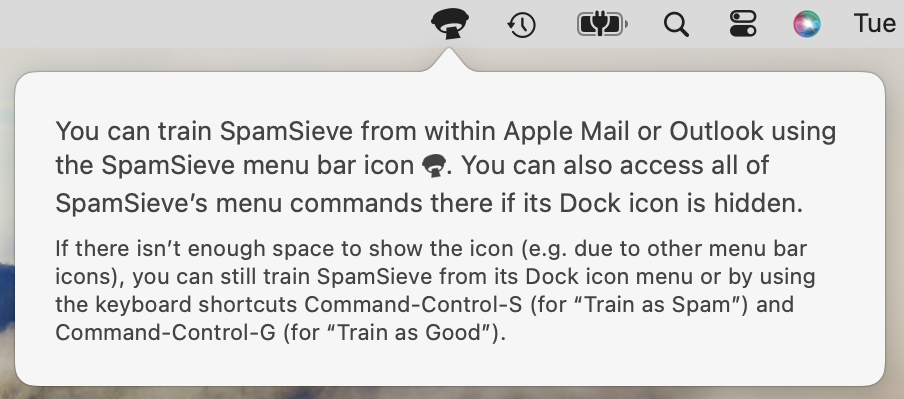
Normally, you will do an initial training and correct mistakes by selecting messages directly in your mail client. You will then tell SpamSieve to train them without leaving your mail client. With Apple Mail and Microsoft Outlook, you can use the Train as Good or Train as Spam commands in SpamSieve’s menu bar icon or Dock icon. For other mail clients, choose the appropriate command within your mail program.
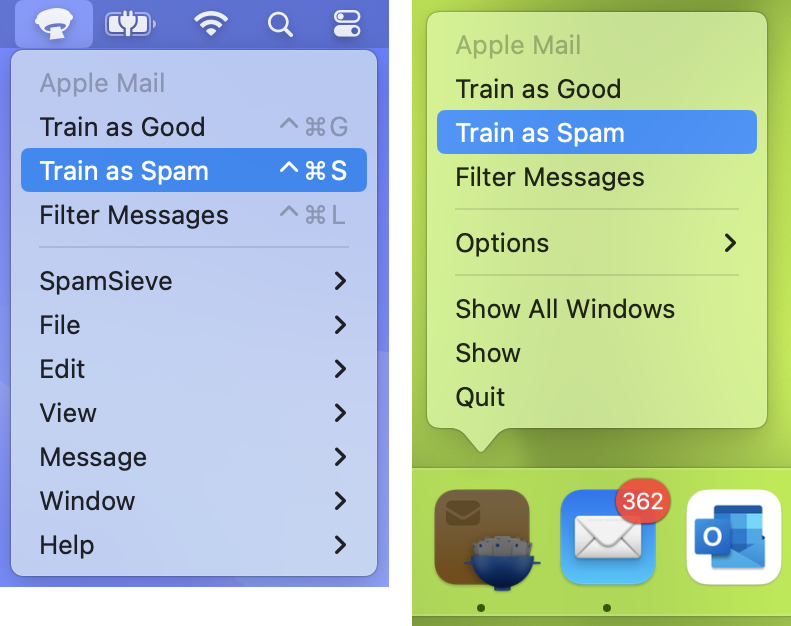
- The SpamSieve menu bar icon (shown at left above) is normally at the top of the screen, near the clock. If you don’t see it, please see the Where is SpamSieve’s menu bar icon? instructions.
- The SpamSieve Dock icon (shown at right above) is normally at the bottom or side of the screen. When using the Dock menu, it’s important to click and hold on the SpamSieve icon to open the menu while still in your mail client. You don’t want to just click the icon because that will switch SpamSieve to be the active app.
- With macOS 13 Ventura and earlier, the SpamSieve training commands are also available in the Message menu in Apple Mail. macOS 14 Sonoma and later no longer support Mail plug-ins, so it’s no longer possible for SpamSieve to add its commands to Mail’s Message menu. Please send feedback to Apple if you would like Mail extensions to be able to add menu items.
- The keyboard shortcuts for the training commands are Command-Control-S (for Train as Spam) and Command-Control-G (for Train as Good). These can be customized via the esoteric preferences.
- In most cases, if the training commands in the SpamSieve menu bar icon are disabled, that’s because your mail client is not the active app. Click on the Mail or Outlook icon in the Dock to switch to that app, and the menu commands should become enabled. In rare cases, a macOS bug or another app can interfere and make SpamSieve think that the mail client isn’t frontmost, even though it actually is. In such cases you can click this link to tell SpamSieve to act as though Mail is always active, so that the commands will remain enabled.