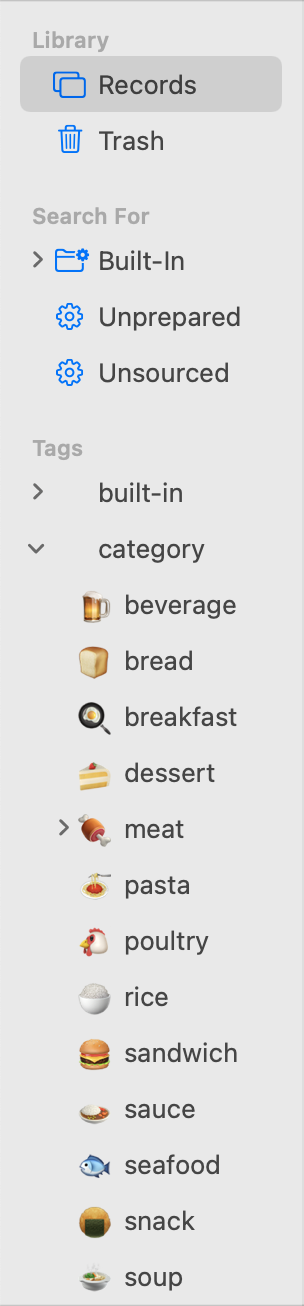
4.1 Source List
The top-level sources are:
- Library
- Records
- All the records in the library, from all the folders (except the trash). (If you only want to see the top-level records, see the Unfiled smart folder, below.) Click the triangle next to the Records source to expand it and see folder sources matching the folders in the library’s Files folder in the Finder. You can drag and drop files and folders to re-arrange their hierarchy.
- Trash
- The records that have been deleted from the library, but which are still available until you empty the trash. This corresponds to the library’s Trash folder in the Finder.
- Search For
- Recently Added
- The last 25 files that were added to the library.
- Recently Modified
- The last 25 files that were modified within EagleFiler or using another application.
- Unfiled
- Files that are at the top level of the library, e.g. ones that are directly in the Files folder rather than in one of its sub-folders. For example, if you like to categorize all your files into subfolders, Unfiled shows you all the files remaining to be categorized.
- Untagged
- Files anywhere in the library that do not have any tags (other than “note”).
- Tags
- Tag sources behave like playlists in iTunes or albums in Photos. Select a tag source to view all the records with that tag. You can drag records onto a tag source to assign that tag to them. Hold down the Command key to assign the tag and unassign all others (i.e. “move” it to that tag). Each record may appear in any number of tag sources. Deleting a record from a tag source unassigns that tag; the record remains in the library. You can drag and drop tags to re-arrange their hierarchy.
Selecting Multiple Sources
You can select more than one source at a time to view all their contents at once or to winnow by tag. For example:
- To see all the messages in either of two mailboxes, select both mailboxes at once.
- To see all the flagged files in a folder, select the folder and the flagged tag.
- To see all the records that are both flagged and unread, select both the flagged and unread tags. You can select any number of tags at once to show their intersection.
Importing via the Source List
Drag files here to import them. You can drop onto a folder or tag source to import files directly into that folder or to import them and assign that tag. You can use Exposé mid-drag to bring a window to the front and reveal the source that you want to drop onto.
Multiple Windows
You can double-click a record or smart folder source to open it in a new window. For an editable smart folder, Option-double-click to open it in a new window instead of editing the smart folder.
Navigating
You can type the first few letters of a source’s name to select it. See also the collapsing and expanding Shortcuts.
Hiding and Showing
To hide and show the source list, you can use the Show ‣ Source List command in The View Menu. You can also drag or double-click the divider.
Renaming
With a source selected, press Return or Enter to edit its name.
Reordering
The source list is sorted alphabetically, so you can change where a source appears in the list by renaming it. For example, you can make a source sort to the top by putting ! or @ at the beginning of its name or at the bottom by putting z at the beginning of its name.
Custom Folder Icons
You can customize folder and smart folder icons in the source list. First copy an image to the clipboard (e.g. using Preview). Then Control-click on a source and choose Paste Icon. Custom icons can be removed from the Get Info window in Finder. Tag abbreviation symbols are not images, and so cannot be set via pasting. They can be specified as emoji or Unicode symbols in the Tags inspector.