5.8.2 Show Tags
This window shows a list of tags for the current library. You can also view the tags using the Show Tag Cloud command.
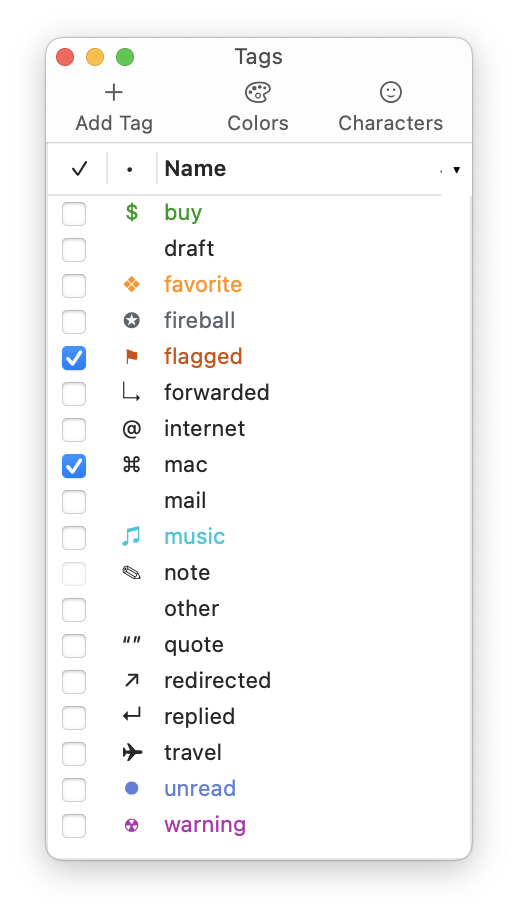
The columns are:
- ✓
- The box is checked if all of the selected records in the browser window have this tag. It shows a - sign if some (but not all) of the selected records have the tag. It is disabled if no records are selected.
- •
- The abbreviation (if any) for the tag. For example, the “unread” tag is shown as a blue •, and the “flagged” tag is shown as a red ▸. Abbreviations are shown in the Tags column of the records list. Double-click on an abbreviation to edit it. The abbreviation can be composed of ordinary letters, as well as any of the special symbols and emoji found on the EagleFiler Tag Symbols Web page. You can open this page by clicking on the Characters button in the toolbar. You can also use the Tag Abbreviation Style AppleScript to switch between different sets of symbols for the built-in tags.
- Name
- The name of the tag, which is shown in the Tag Names column of the records list. Double-click on a name to edit it. (The names of built-in tags such as “unread” cannot be edited.) Each tag must have a unique name.
You can give the tags inspector keyboard focus by:
- Clicking in its title bar.
- Choosing Show Tags from the Record menu.
- Clicking the Tags button in the toolbar of a browser window.
- Editing an abbreviation or name.
Once the tags inspector has keyboard focus, you can:
- Type the first few letters of a tag’s name to select it in the list.
- Press the spacebar to toggle whether the selected records in the browser window have the selected tags. This is like checking or unchecking the boxes of all the selected tags at once.
- Click the Colors button in the toolbar. Then choose a new color for the selected tag(s) and abbreviation(s).
You can Control-click on a tag to reveal it in the source list, thus showing all the records with that tag.
See also: How do Finder tags work with EagleFiler?