8.2 Setting Up Entourage
This section applies to Entourage 2004 and 2008. Please see the Setting Up Entourage v.X section if you need to set up an older version of Entourage.
Go to Entourage’s Tools menu and select Junk E-mail Protection. Turn off Entourage’s junk filter by clicking None and then OK.
Switch to SpamSieve by clicking on its icon in the Dock. Go to the SpamSieve menu and choose Preferences…. Make sure that Use Outlook/Entourage contacts is checked and click the Load Contacts.
Choose Install Entourage Scripts from the SpamSieve menu. After you quit and re-launch Entourage, you should see four SpamSieve items in Entourage’s Scripts menu:
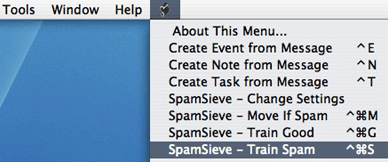
Choose Rules from Entourage’s Tools menu. Click on the tab corresponding to the type of account you have (e.g. POP, IMAP, or Exchange). If you have more than one kind of account, you will need to repeat steps 4–6 for each account type.
Click the New button. Change the name of the rule to SpamSieve - Move If Spam.
Click on the empty space between Change status and Not junk E-mail. Click Remove Action to delete the Change status action.

Click on the menu that says Set category and choose Run AppleScript. Then click the Script… button and Select the SpamSieve - Move If Spam\cmM file. This file is stored in the Entourage Script Menu Items folder (which is probably inside the Microsoft User Data folder inside your Documents folder):
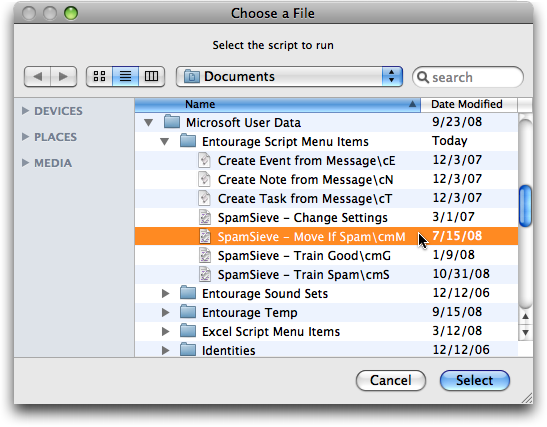
Make sure that Do not apply other rules… is unchecked. The rule should now look like:
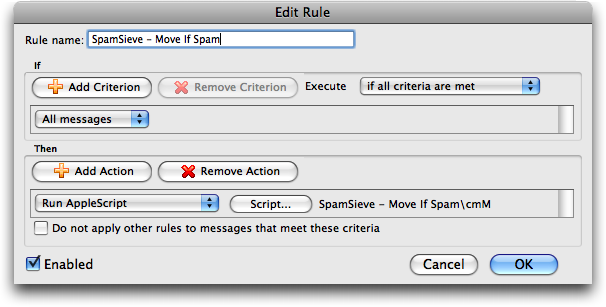
Click OK to close the Edit Rule dialog.
Note: It is important that you create the rule exactly as shown. Do not add additional actions below the action that runs the AppleScript. Such actions would apply to all messages (not just spam ones), which is probably not what you want.
Note: If you are using Gmail (via IMAP) or Exchange with Entourage, change the criterion from All messages to Folder Is Inbox (<Account Name>).
Click the New button to create a second rule. Change the name of the rule to SpamSieve - Move Messages.
Click on All messages and change it to say Category Is Junk.
Click Add Criterion. Click on From for the new criterion and change it to say Category Is Uncertain Junk.
Click on if all criteria are met and change it to if any criteria are met.
Click on the empty space between Change status and Not junk E-mail. Click Remove Action to delete the Change status action.
Click on the menu that says Set category and choose Move message. Change the menu at the right from Inbox to Junk E-mail. The rule should now look like:
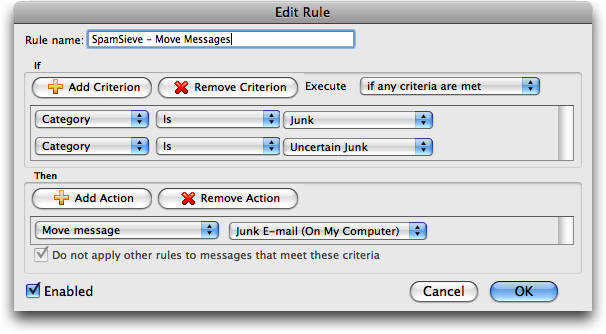
Click OK to close the Edit Rule dialog.
Make sure that the SpamSieve - Move If Spam rule appears at the top of the list in the Rules window. Directly below it should be the SpamSieve - Move Messages rule. You can change the order by dragging.
Now proceed to the Do an Initial Training section.
- To train SpamSieve with spam messages, select one or more of them and then choose SpamSieve - Train Spam from Entourage’s Scripts menu (as shown in the picture for Step 3, above).
- To train SpamSieve with good messages, select one or more of them and then choose SpamSieve - Train Good from Entourage’s Scripts menu.
The keyboard shortcuts for these commands are Command-Control-S and Command-Control-G.
Note: The training commands will move locally stored messages to the Junk E-mail folder or the inbox. Due to limitations of Entourage, they do not move IMAP or Exchange messages. (Incoming spam messages will be automatically moved to the Junk E-mail folder.)
SpamSieve will process new mail automatically. If you ever need to manually ask it to sift through a mix of spam and good messages, select the messages and choose Apply Rule ‣ All Rules from the Message menu.
The above is all you need to know about using SpamSieve with Entourage. The Entourage Customization section explains some more advanced setup options.