6.3.3 Settings ‣ Apple Mail ‣ Training
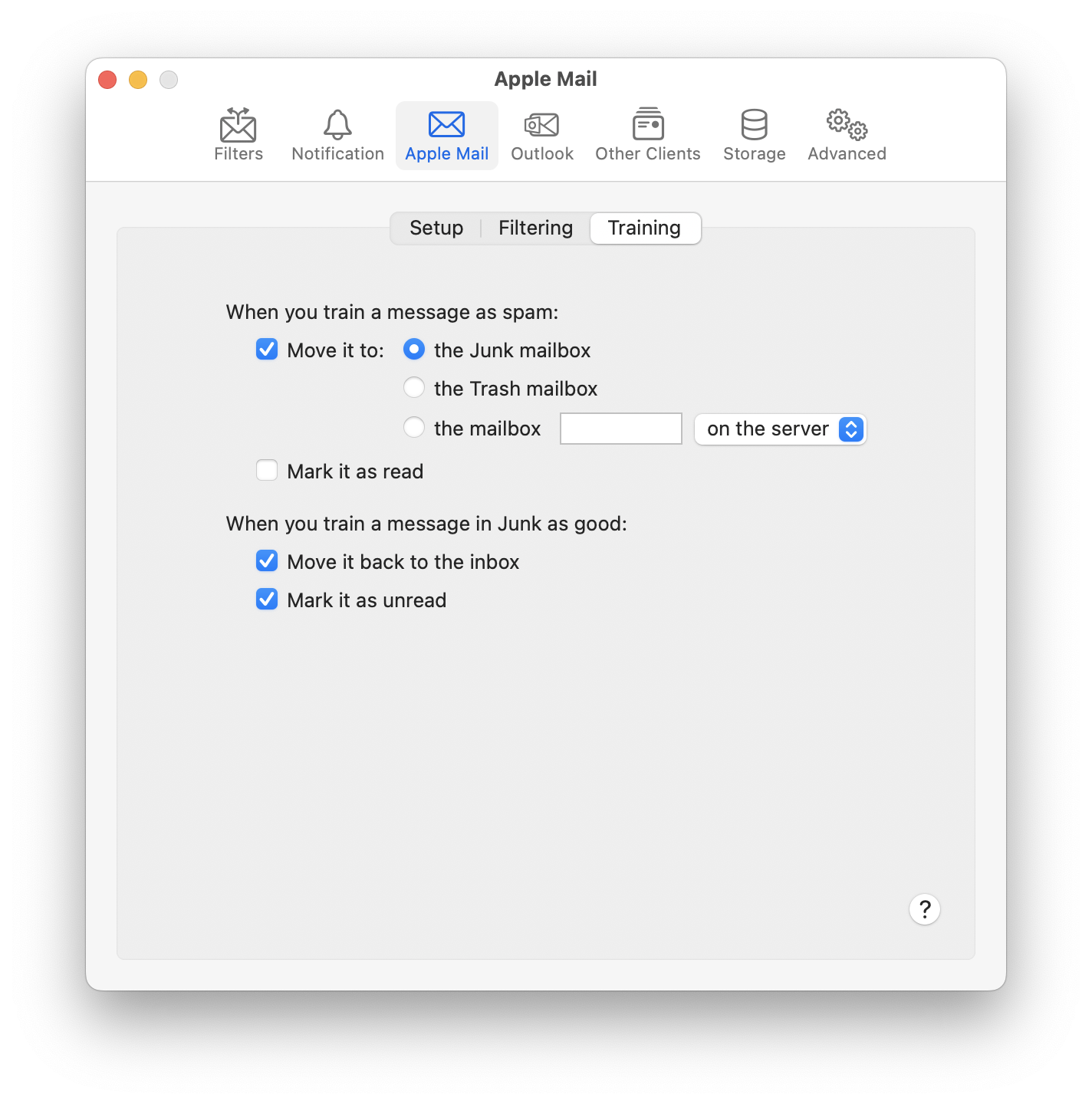
When you train a message as spam:
- Move it to
- This lets you control whether SpamSieve leaves it in its current location or moves to the Junk mailbox, to the Trash, or to another mailbox that you specify. See also: Setting the Junk Mailbox in Apple Mail.
- Mark it as read
- SpamSieve will mark the message as read so that you aren’t distracted by the unread count in Mail’s sidebar.
When you train a message in Junk as good:
- Move it back to the inbox
- If the message is in a Junk or Spam mailbox, SpamSieve will move it back to the inbox. Normally, this is what you want because good messages don’t belong in Junk. However, if you want to use Mail’s Apply Rules command after training, it can be easier to leave the messages in Junk where they would remain selected, so you don’t have to find them again in the inbox, mixed in with your other messages.
- Mark it as unread
- SpamSieve will mark the message as unread, so that it’s now treated as a new message.