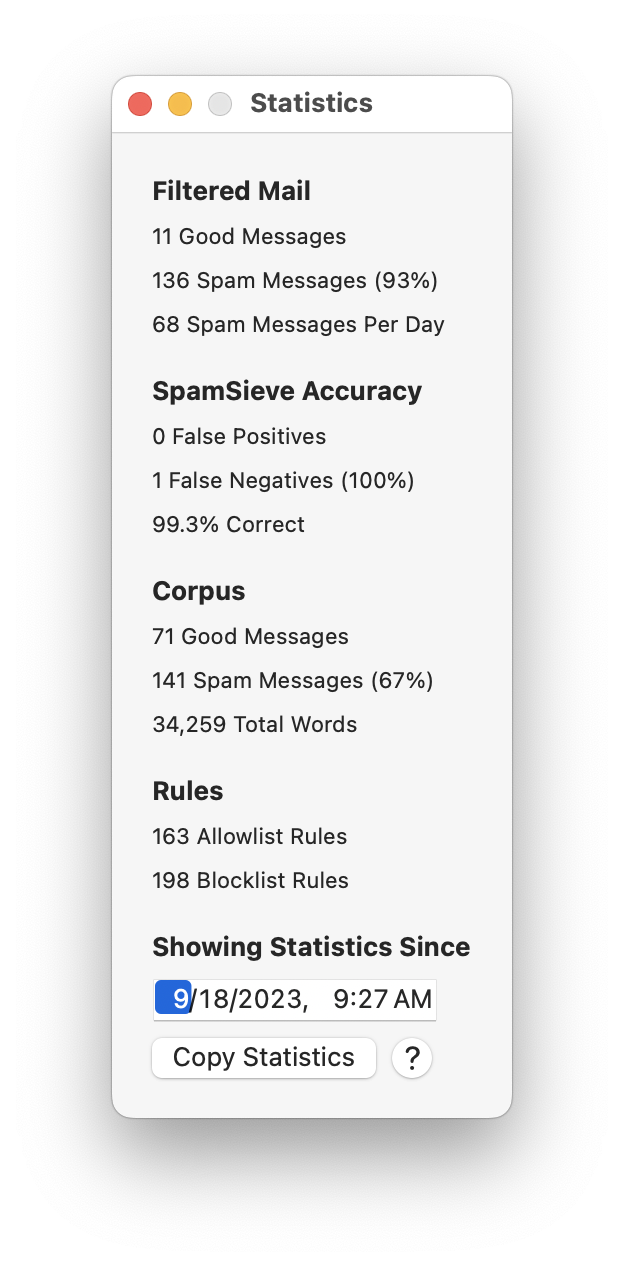
5.4.2 Statistics
This command opens the Statistics window, which displays the following information:
- Filtered Mail
- Good Messages
- The number of non-spam messages that SpamSieve has filtered.
- Spam Messages
- The number of spam messages that SpamSieve has filtered.
- Spam Messages Per Day
- The average number of spam messages received per 24-hour period.
- SpamSieve Accuracy
- False Positives
- The number of good messages that SpamSieve identified as spam.
- False Negatives
- The number of spam messages that SpamSieve identified as good.
- % Correct
- The percent of messages that SpamSieve identified correctly.
- Corpus
- Good Messages
- The number of non-spam messages that are used to identify spam messages.
- Spam Messages
- The number of spam messages that are used to identify spam messages.
- Total Words
- The total number of unique words in the corpus.
- Rules
Normally, SpamSieve shows statistics for all the messages that it has processed since it was installed. Because the accuracy and the number of messages that you receive change with time, you may wish to only see recent statistics. To do this, you can edit the Showing Statistics Since date. If you’ve chosen a suitable date and the Filtered Messages section shows zero filtered messages, that means that your mail program did tell SpamSieve about any of the incoming messages. You should check to make sure that the mail program setup is correct.
You can copy all the statistics to the clipboard using the Copy Statistics button.