5.4.4 Blocklist
The Blocklist command in the Window menu opens the Blocklist window. The blocklist consists of a list of rules. If a message matches one or more enabled rules on the blocklist (and Use SpamSieve blocklist is checked), SpamSieve will predict that it is spam. As always, SpamSieve does not prevent you from receiving the spam messages; rather, the blocklist ensures that they will go to the spam mailbox rather than the inbox. You can also configure Apple Mail so that the blocklisted messages go directly to the trash.
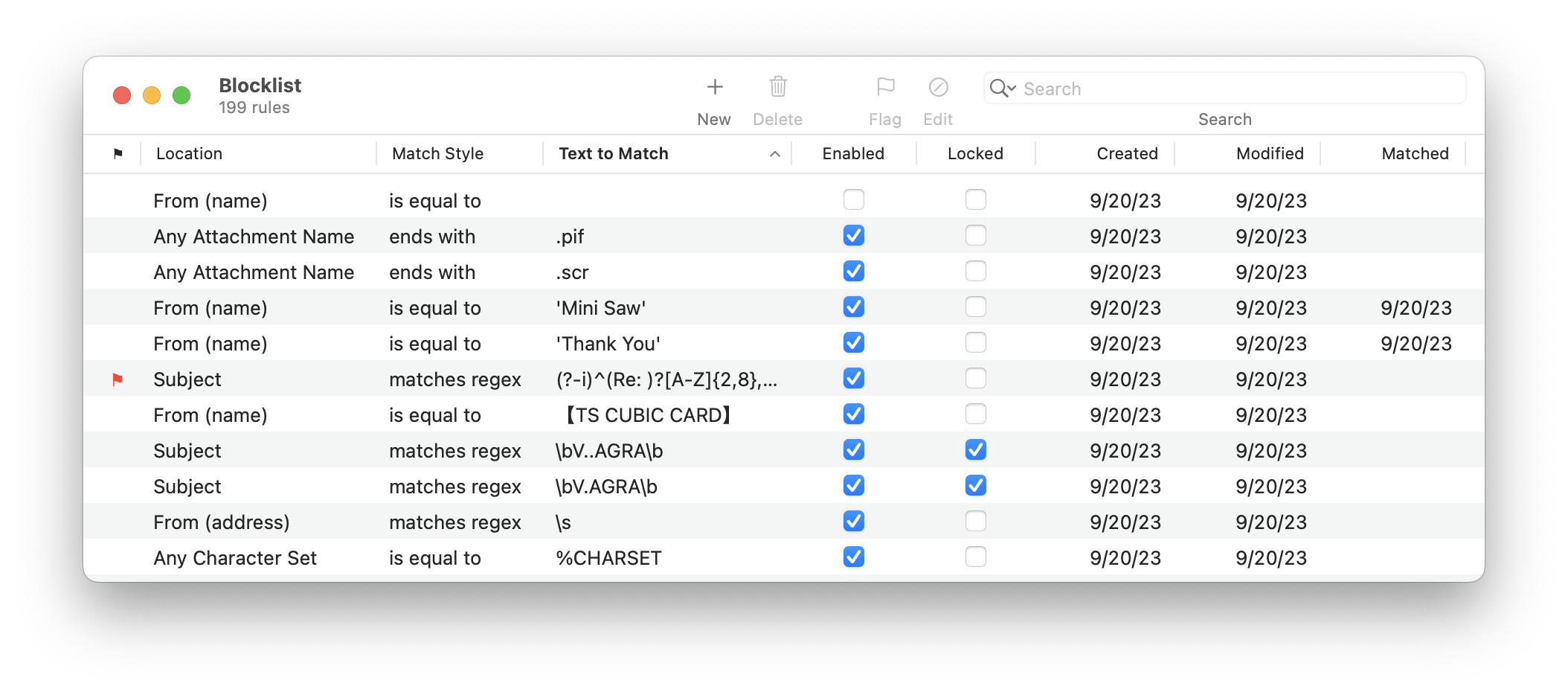
The counterpart to the blocklist is the allowlist.
For information about searching the blocklist, please see the Searching section.
Creating Rules
There is normally no need for you to manually create or delete blocklist rules because SpamSieve learns to recognize your spam automatically. Thus, it’s OK if you receive spam from constantly changing addresses; you don’t have to worry about creating blocklist rules to match all of them. If a lot of spam is in your inbox, your first step should be to follow the instructions in Why is SpamSieve not catching my spam? rather than to create blocklist rules that may not be needed or even used (e.g. if the real problem is that your mail program isn’t set up properly).
Rules and Training
By default, the Train SpamSieve blocklist preference is enabled. This means that SpamSieve will automatically create blocklist rules when you train a message as spam. You won’t get spam from the same address or sender name twice.
SpamSieve will also disable (uncheck) matching blocklist rules when you train a message as good. This prevents a bad blocklist rule from blocking similar good messages.
Editing Rules
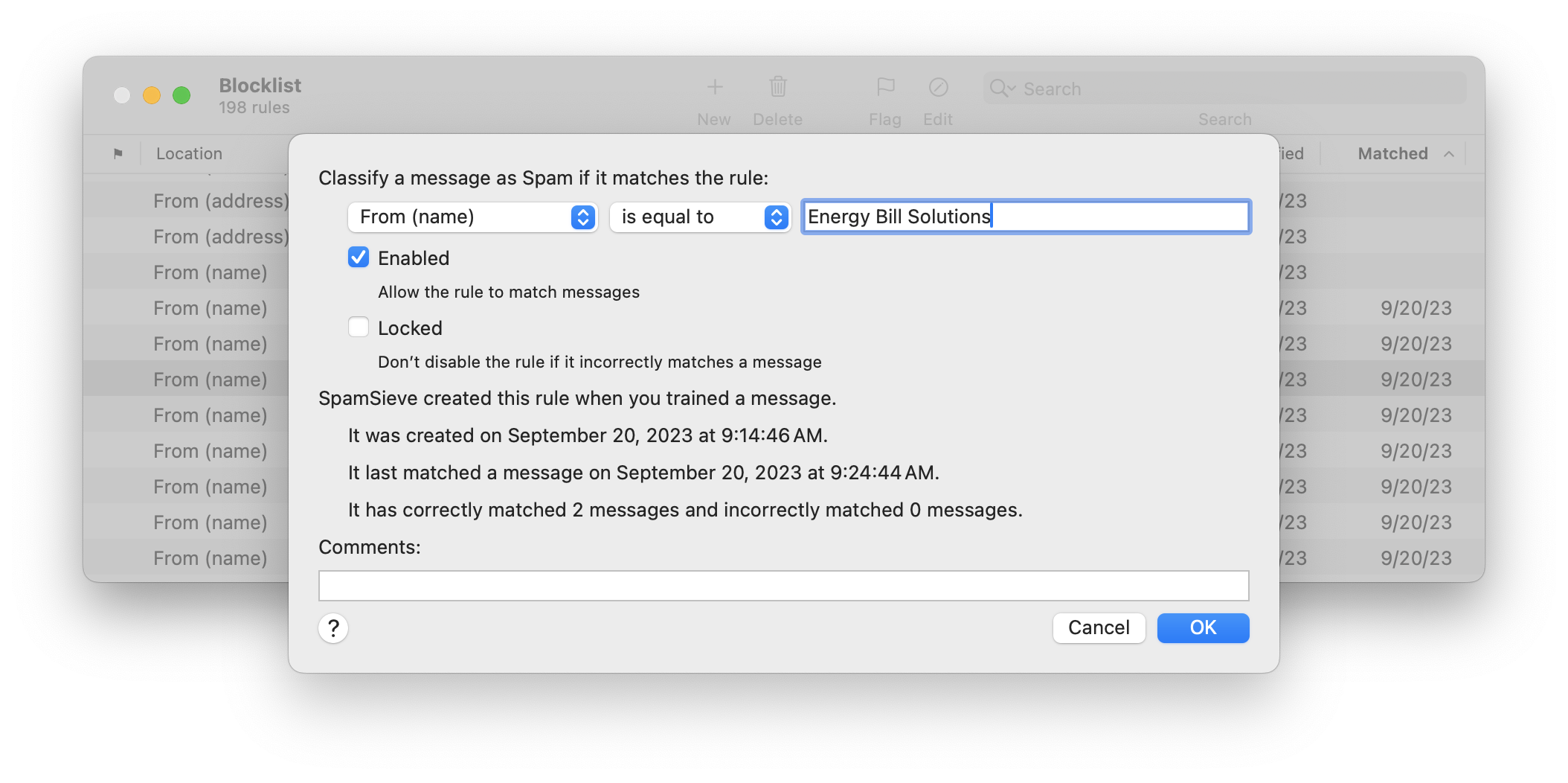
To edit a rule, double-click it in the list or click the Edit button in the toolbar. For more information about the available options see the Rule Columns, Locations, and Match Styles section. The Comments field lets you enter additional information to help you remember why you created a rule or how a regex was intended to work. You can search for rules by comment.
Deleting and Disabling Rules
You can delete a rule from the blocklist by selecting it and pressing Delete. Generally, there is little reason to delete rules. SpamSieve is optimized such that having lots of rules does not reduce performance.
If you don’t like what a rule is doing, you should uncheck the rule rather than deleting it. This will prevent SpamSieve from re-learning the rule automatically (see “Rules and Training” above). For example, say that you get forged spam messages from your own address. When you receive such a message, and tell SpamSieve that it’s spam, any rule on the allowlist with your address would be disabled. This will enable future such spam messages to be caught. If you later get a legitimate message from your own address and tell SpamSieve that it’s good, the allowlist rule will remain disabled, so SpamSieve will still be able to catch that spam. If you had previously deleted the rule instead of disabling it, telling SpamSieve that the message was good would create a new, enabled allowlist rule, which would prevent those spam messages from being caught.
Blocklisting Domains and Countries
You can tell SpamSieve to classify every message from a particular domain as spam. For example, to block every message from Spammy Company, open the Blocklist window, click the + button, and create a rule that says From (address) Ends With @spammycompany.com. You can also create rules for particular countries. For example, to block every message from an e-mail address in Nigeria, create a rule that says From (address) Ends With .ng
Blocking Messages to Invalid Addresses
If you have your own domain name, it’s best to configure the server not to have a catch-all address because that would lead to your receiving spam messages send to addresses that are not even valid. SpamSieve could filter out those spams, but it’s better if you can avoid downloading them and cluttering your spam mailbox in the first place.
If you cannot configure your server in that way, you can use the Matches Regex match style to create a blocklist rule that matches messages sent to invalid addresses at your domain. For example, this regex:
^.*(?<!^sales|^support)@domain\.com$
would match all messages where the match field ends with @domain.com but is not sales@domain.com or support@domain.com.
Finding Rules
You can type the first few letters of a rule’s Text to Match to quickly locate that rule, or use the search field in the toolbar to focus on a group of related rules.
Exporting Addresses
You can use the Copy Whitelist/Blocklist Addresses script to get a list of addresses, e.g. to add to the configuration of a server-side spam filter.
Troubleshooting Rules
Blocklist rules will not match a message if:
- One of the Filters above the blocklist classified the message as good.
- The blocklist rule is disabled.
- The mail program did not send the message to SpamSieve for analysis. See the Why is SpamSieve not catching my spam? section.