6.5 Settings ‣ Other Clients
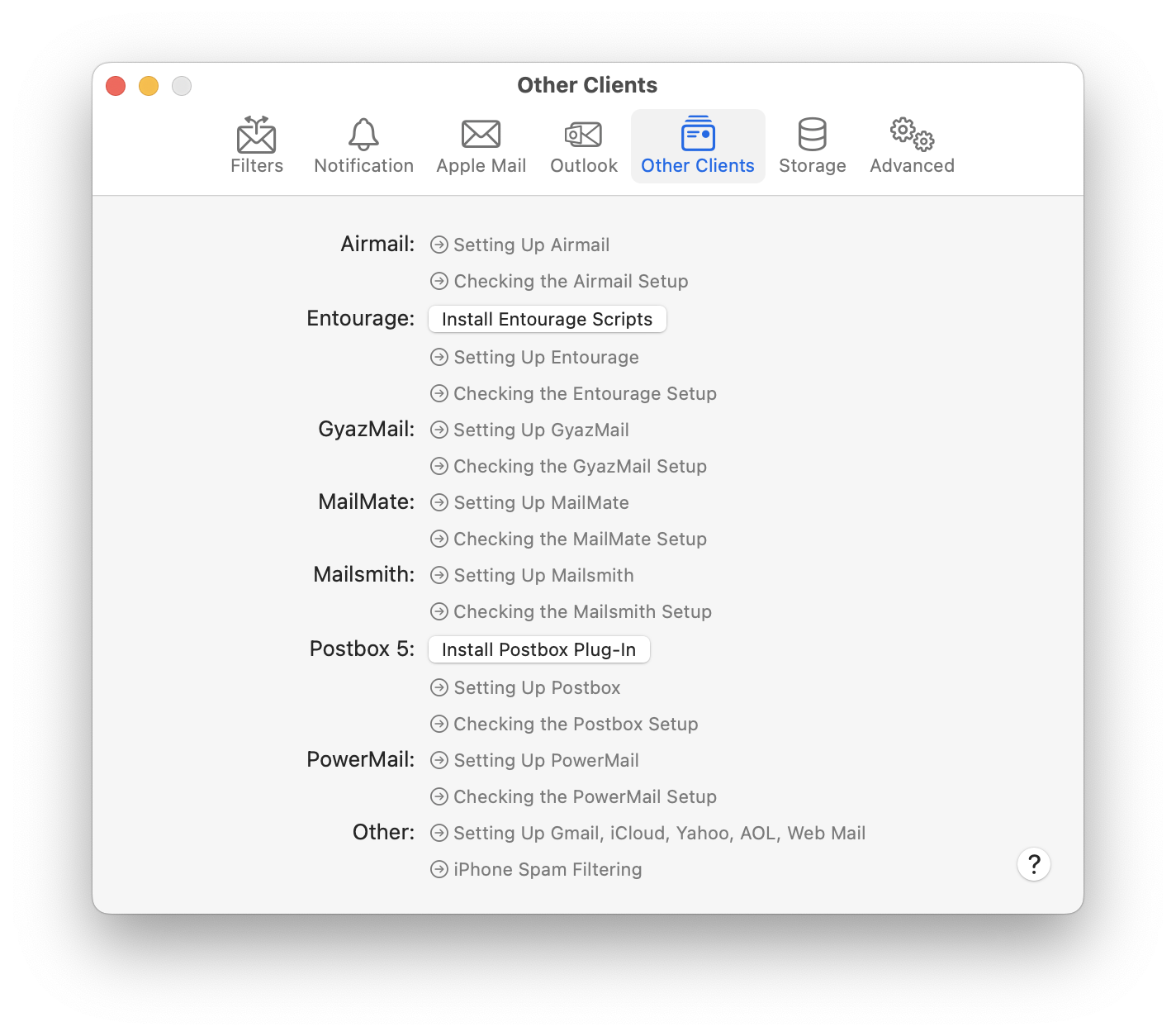
Airmail
See the Setting Up Airmail section.
Entourage
See the Setting Up Entourage section. The Install Entourage Scripts button installs (or updates) the AppleScript files that SpamSieve uses to integrate with Entourage. Occasionally, the script files can become damaged, causing Entourage to ask you to locate the SpamSieve application each time you receive mail or try to train SpamSieve. Using this command to install fresh copies of the scripts should fix that problem. This command also makes sure that you have an Entourage category called Uncertain Junk.
GyazMail
See the Setting Up GyazMail section.
MailMate
See the Setting Up MailMate section.
MailMaven
See the Setting Up MailMaven section.
Mailsmith
See the Setting Up Mailsmith section.
Postbox 5
See the Setting Up Postbox section.
PowerMail
See the Setting Up PowerMail section.
Other
See the Setting Up Gmail, iCloud, Yahoo, AOL, or Other Web Mail and iPhone Spam Filtering sections.