6.7.2 Show Dock icon
You can uncheck Show Dock icon to hide SpamSieve’s icon from the Dock. This will also hide it from the Command-Tab application switcher and hide its menus. The menu commands can still be accessed from the SpamSieve menu bar icon. If SpamSieve is hidden from both the menu bar and the Dock, you can still access its settings by opening SpamSieve from your Applications folder when it’s already running.
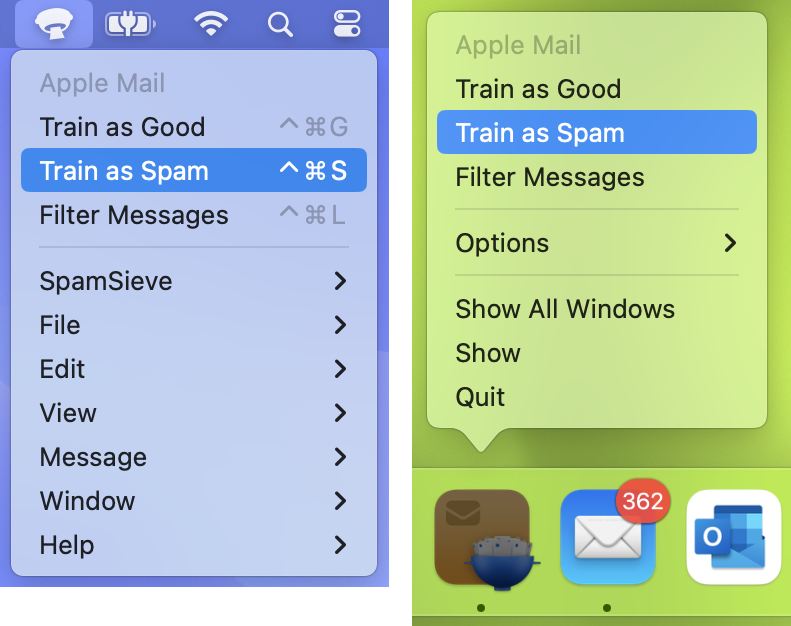
You can also control the Dock icon setting by clicking the special links below:
- To hide SpamSieve’s Dock icon, click this link.
- To show SpamSieve’s Dock icon, click this link.
If the SpamSieve Icon Is Still In Your Dock
Please note that hiding the Dock icon takes effect after you quit and relaunch SpamSieve.
macOS 10.14 and later include a section of the Dock for recent applications, and this can include the icons even of applications that have hidden their icons. To hide SpamSieve from this section, first quit SpamSieve. Then you can either:
Click and hold on the SpamSieve Dock icon and choose Options ‣ Remove from Dock from the menu; or
Drag the SpamSieve icon off the Dock; or
If SpamSieve is in the suggested/recent section of the Dock, drag it to the regular part of the Dock and then remove it from there.
Go to System Settings ‣ Desktop & Dock ‣ Dock and uncheck Show suggested and recent applications in Dock to hide that section entirely.
Note: On earlier versions of macOS, this is in System Settings ‣ Dock & Menu Bar ‣ Show recent applications in Dock or System Preferences ‣ Dock ‣ Show recent applications in Dock.
Some users report that they need to restart their Mac in order for macOS to hide Dock icons.
Status in Dock Icon
If System Settings ‣ Notification ‣ SpamSieve ‣ Badge application icon is checked, SpamSieve will show status information in a red badge in the top-right corner of its Dock icon.
If you have the Show number of new good messages in Dock option enabled, the Dock icon will show a red number indicating how many good messages have been received since SpamSieve or the mail program was last activated.
Additionally, SpamSieve will show a status symbol when it’s processing a message:
- A ✓ indicates that it’s training a message as good.
- A × indicates that it’s training a message as spam.
- A ⬇︎ indicates that it’s classifying an incoming message.