4.2 Records List
The records list shows the contents of the selected source(s). If a folder or tag is the selected source, you can drag files into the records list to import them with that folder or tag.
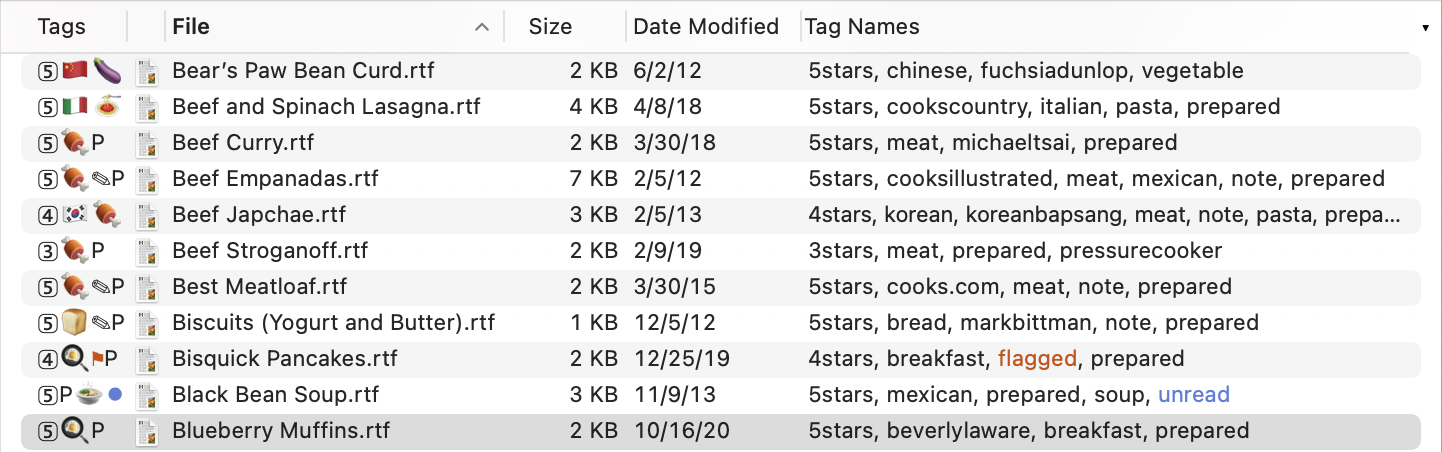
The columns are:
- Tags
- The abbreviations for the assigned tags (e.g. • for unread).
- Count (#)
- The number of pages in a PDF, messages in a mailbox, or attachments in a message.
- Icon
- An icon that shows the record’s type.
- Title
- The subject of a message or title of a document. For most document types, the title is separate from the filename, e.g. it’s the original page title stored in a Web archive, manually set in the Properties window in TextEdit or in Microsoft Word, or manually in the sheet when saving a document in PDF format. If a file doesn’t have an intrinsic title, or if you set the title to be blank, EagleFiler will show the filename (without the file extension) as the title. You can use Batch Change… to clear the titles of many records at once if you want them all to be linked to their filenames. If you want to edit the filename without changing the linked title, you can use the Change Filename, Keeping Title script.
- From
- The sender of a message, author of a document, or domain of a Web page.
- To
- The recipient of a message or document.
- Date Modified
- The date the record’s contents was modified. For a file, this is the file’s modification date. For a message, this is when the message was sent.
- Date Added
- The date the record’s file was added to the library.
- Date Created
- The date the record’s file was created. For a message, this is when the message was sent.
- Size
- The amount of disk space used by the record.
- File
- The name of the file containing the record.
- Kind
- The type of the record.
- Label
- The Finder label color of the record’s file.
- Container
- The name of the folder or mailbox that the record is inside.
- Tag Names
- The full names of the assigned tags.
- Source URL
- The URL where the file was downloaded from.
- Notes
- The record’s note text.
- •
- Whether the record has the “unread” tag.
- ⚑
- Whether the record has the “flagged” tag.
Drag and drop the column headers to change their order. Click the ▾ or Control-click on a column header to choose which columns are visible.
You can type the first few letters of a record’s title to select it. Double-clicking a folder or mailbox in the list opens it in the same window. Double-clicking a file is equivalent to choosing Open With External Viewer. Option-double-clicking is equivalent to choosing Open Source URL. Press Enter (or Return) to rename the selected file or Option-Enter (or Option-Return) to change its title.