4.4 Searching
The search box lets you filter the records of the selected sources to display only those records that match the search criteria. After finding the record you’re looking for, you can then search within it. Searches can be initiated from within EagleFiler or from other applications such as Alfred and LaunchBar.
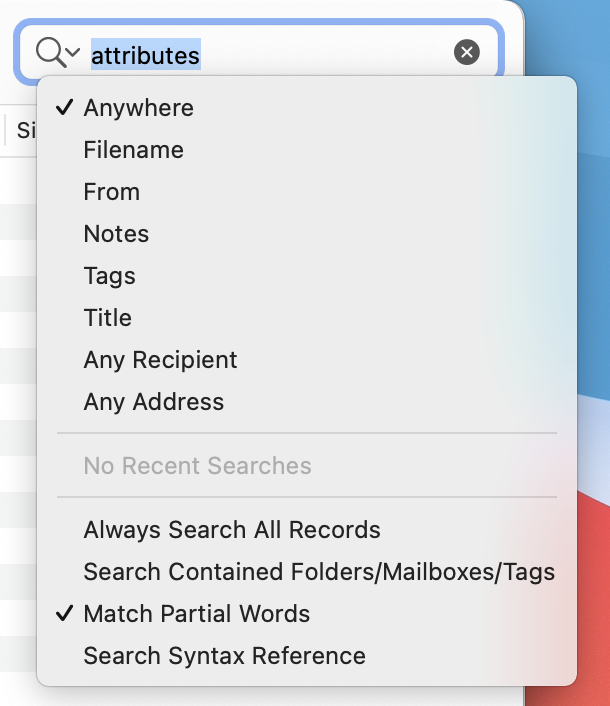
Search Scope
If Always Search All Records is checked, EagleFiler searches the entire library, regardless of which sources are selected. It is as if you had selected the Records source before starting your search. This will include or not include e-mail messages depending on whether Show ‣ Messages in Records Source is checked. When the search is over, EagleFiler goes back to displaying only the records from the selected sources.
If Always Search All Records is unchecked, EagleFiler only searches the records from the selected sources:
- When you have the Records source selected, EagleFiler searches the entire library; this will include or not include e-mail messages depending on whether Show ‣ Messages in Records Source is checked.
- When a folder or tag is selected, EagleFiler displays and searches only the contents of that folder or the records with that tag. If Search Contained Folders/Mailboxes/Tags is checked, EagleFiler searches all the folders and mailboxes inside the folder, or the subtags of the tag; otherwise, it searches only the top level.
Indexed Searches
Indexed searches look for records that contain each word that you type. Words do not include spaces or punctuation characters, and they are case- and diacritic-insensitive. Words do not have to appear in sequence or even near each other.
There are two kinds of indexed searches:
- Anywhere
- Searches the contents of the records, as well as the Title, Filename, From, To, Cc, mail attachment names and contents, and notes. Also searches for records whose tags exactly match the query.
- Notes
- Searches the notes of the records.
For more information about indexed searches, see the Search Query Syntax section. The How does indexing in EagleFiler work? section has additional information about indexing options and troubleshooting.
Exact Searches
Exact searches look for the exact sequence of characters that you type, including partial words, spaces, and punctuation. However, they are case- and diacritic-insensitive, so that searching for e will find by é and E.
There are five kinds of exact searches:
- Filename
- Searches the filenames as displayed in the records list.
- From
- Searches both the names and e-mail addresses.
- Tags
- Finds records that have the specified tag names. For more information, see the Search Query Syntax section.
- Any Recipient
- Searches both the names and e-mail addresses in the To and Cc fields.
- Any Address
- Searches both the names and e-mail addresses in the From, To, and Cc fields.
- Title
- Searches record titles and message subjects.
Note: Searches for From and To/Cc are slow for e-mail messages stored as individual .eml files. If you need to search lots of messages, it’s best to merge .eml files into mailboxes (or import in mailbox format in the first place).
Advanced Searches
More complex searches, with different types of criteria and Boolean conditions, are available using smart folders.