4.4.2 DropDMG Window
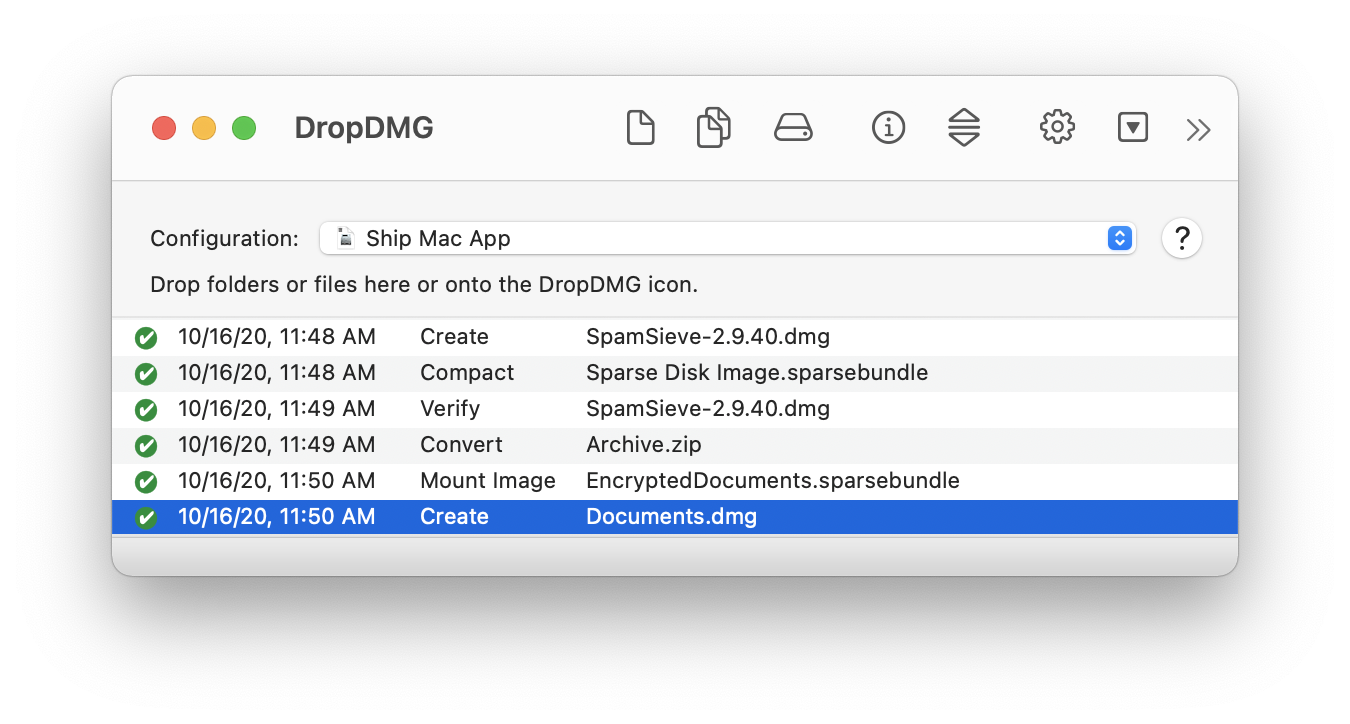
DropDMG’s main window has five parts:
At the top is a toolbar with shortcut buttons for accessing frequently used commands. You can choose which commands are available by choosing Customize Toolbar… from the View menu.
Below the toolbar, a pop-up menu lets you pick one of the configurations. This determines the options that will be used to create a disk image or archive. Hold down the Option key while choosing from the pop-up menu to open a configuration for editing.
You can drag files and folders into this area of the window to initiate the following types of operations: New from Folder/File…, Convert Image/Archive…, Verify Image…, Burn…, and Join Files…. DropDMG will automatically figure out what to do, and you can hold (or not hold) the Option key to specify temporary options that override the configuration.
The log shows a list of the completed operations. The Show All Log Entries/Errors Only menu commands determine which log entries are shown. You can copy log entries as text using Edit ‣ Copy or delete them by pressing the Delete key. The Remove log entries setting lets you set DropDMG to auto-delete old log entries.
You can Control-click on a log entry to perform an operation on that entry’s file. For example, if you’ve just created a .dmg file you could burn it.
When DropDMG is busy, the bottom bar tells how many operations are in progress. You can click the progress spinner to open the Activity window and see more detail.
The Log Detail drawer shows additional information about the selected log entry.
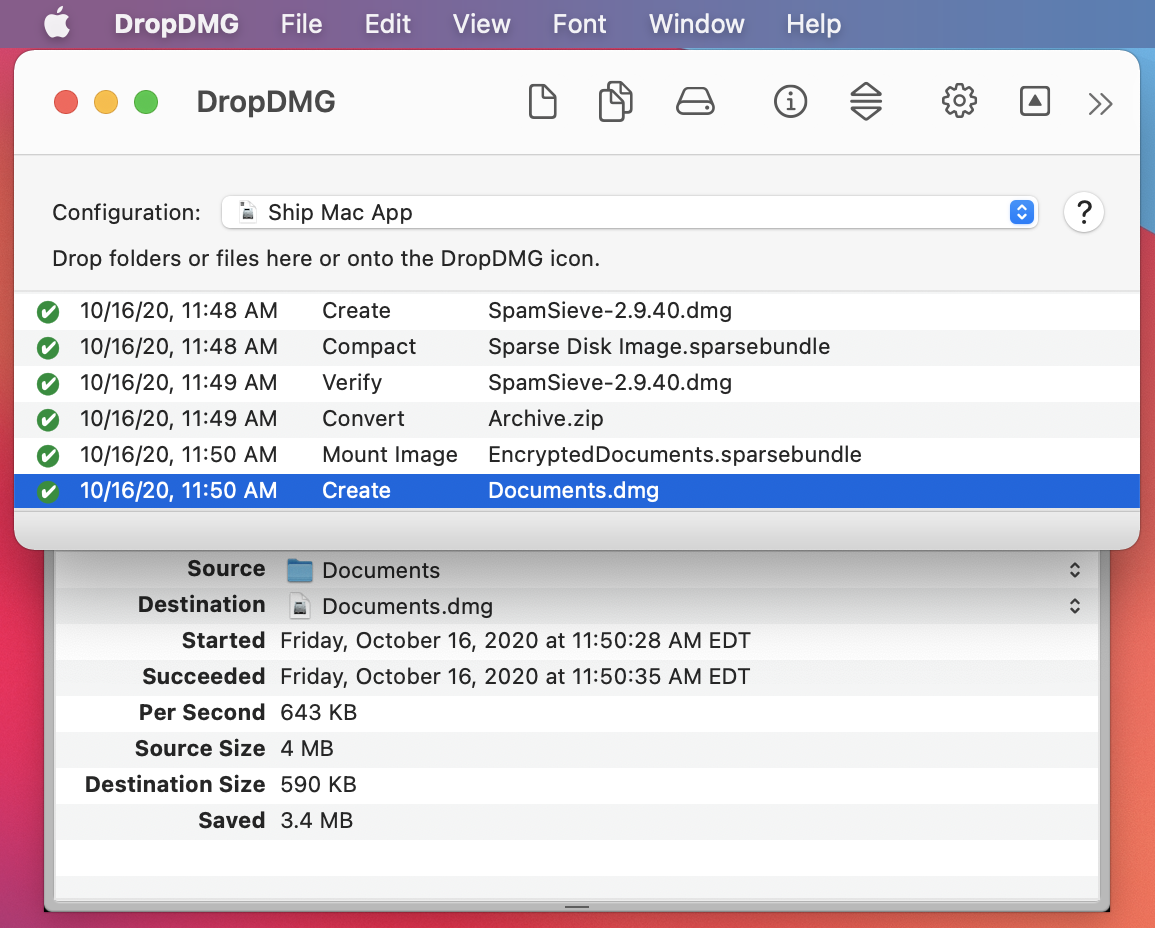
DropDMG remembers between launches whether the DropDMG window is open.