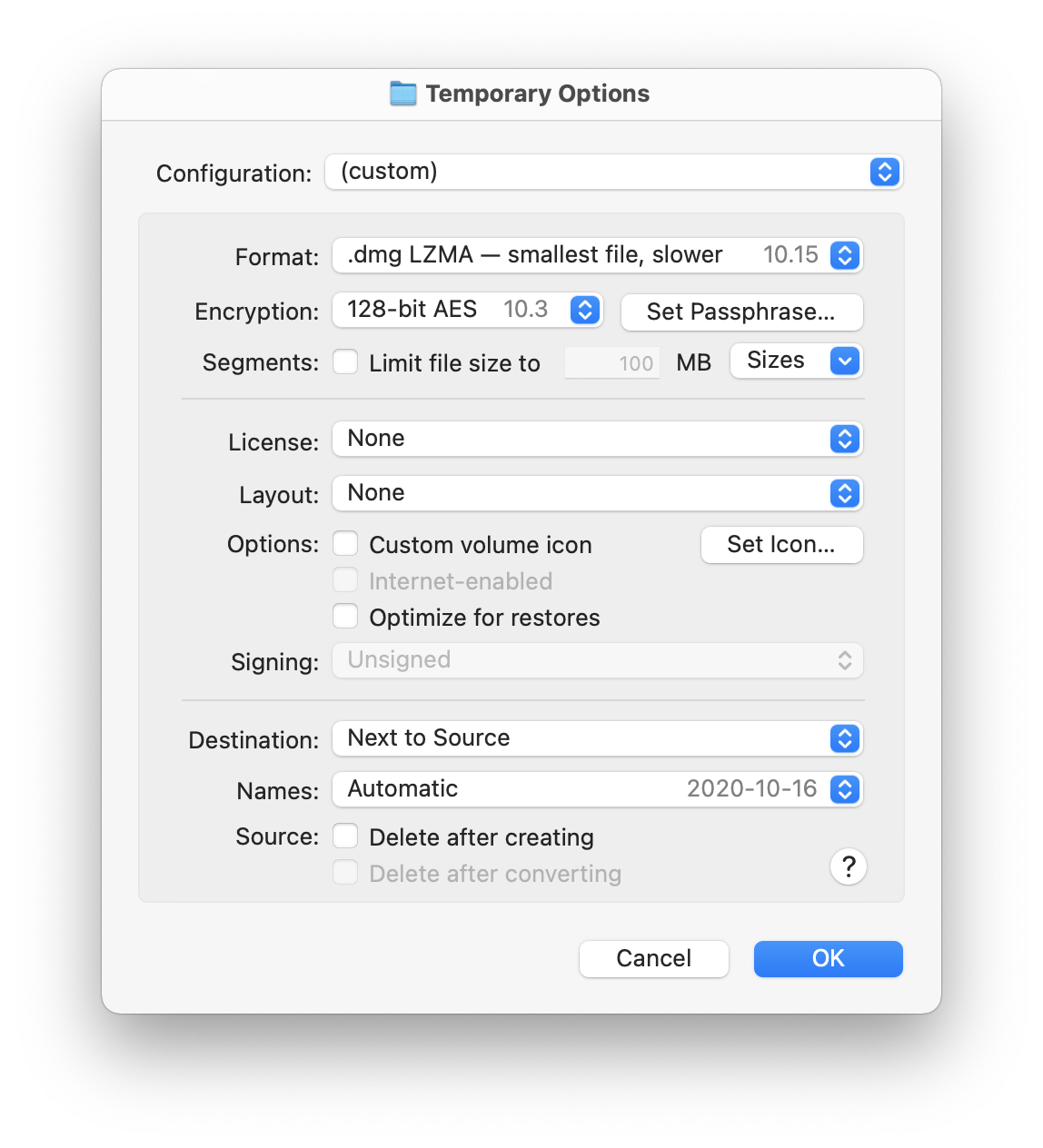
5.4.1 Temporary options
When DropDMG is creating or converting a disk image, it uses the options specified in the current configuration. If you want to use slightly different options, you could go to the Configurations settings, duplicate the configuration, change it, make your image, and then delete the configuration. However, it’s much easier to use temporary options. This lets you start with a configuration, make some one-off changes, and then create your disk image without altering any of the saved configurations.
- Show if Option key is down
- Select this option if you normally want to use the saved configurations, using temporary options only when you drag a folder onto DropDMG while pressing the Option key.
- Show unless Option key is down
- Select this option if you usually make different types of disk images each time. DropDMG will always bring up the temporary options window, unless you’re pressing the Option key.
You can also use the DropDMG: Ask for Options command in the Services menu to create a disk image using temporary options.